

Introduction to Speed Up WordPress Website
The need to speed up the WordPress website is one of the most important needs nowadays. If your website is working slow, it will frustrate the users and will also result in poor SEO performance, traffic, and revenue.
That’s why Google always prefers speed to decide your website’s ranking. If your website loads in under 3 seconds, it’s performing well. If not, it needs improvement. Learn how to speed up WordPress website performance.
So, whether you’re a newcomer who has just started writing blogs or a pro developer managing big websites, this piece of information will give you something to acquire for sure.
Why Does Website Speed Matter for WordPress?
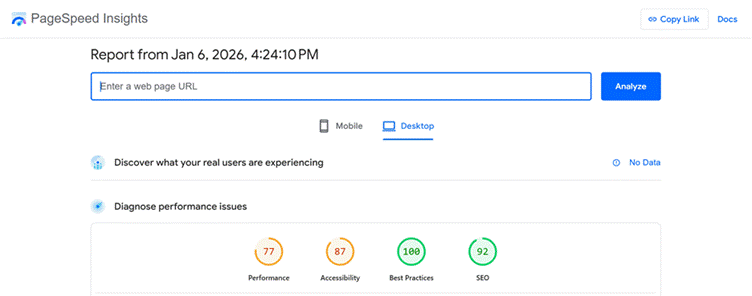
Many beginners get confused as to why website speed matters so much. Let’s understand why WordPress speed optimization is so important.
A quicker website has following advantages:
- It enhances user experience and traffic engagement.
- It limits the bounce rate.
- It improves sales and conversion rates.
- Enhances ranking on the search browser
- It increases Core Web Vitals scores
Moreover, page speed is one of the crucial ranking factors by Google for both mobile and desktop. Therefore, if your website is loading slowly, you’re already behind your competitors irrespective of the content quality.
Attention! These Reasons Are Making Your Website Slow…!
It will be easy to fix issues if you know them. These are some of the reasons affecting your wordpress website load time:
- Bad quality web hosting
- Heavy themes loaded with unused scripts.
- High number of plugins.
- Big image sizes.
- Lack of caching mechanism.
- Big database cluttering.
- Lack of CDN integration.
You need to fix them in order to speed up WordPress website performance.
How to Speed Up WordPress Website Load Time? Find Here
Step 1: Select Quick and Trustable WordPress Hosting
Your hosting provider is a crucial factor in determining the website’s speed. For instance, while selecting it, you should look these essentials that include:
- NVMe or SSD storage
- Latest PHP versions
- International Data Centers
- Integrated caching facility
- Better uptime guarantee
Type of Hosting You Should opt for:
Shared Hosting: A cost-effective medium to host your website. In shared hosting, various websites share server resources that help them cut costs. That’s why this option is perfect for new bloggers, amateurs, and small websites that do not have to deal with heavy traffic.
Managed WordPress Hosting: If you want top-notch management with elite security and seamless performance, go for managed WordPress hosting. It provides quick updates and server optimization with caching integration.
Cloud Hosting: It utilizes various servers to allocate resources dynamically. This results in better scalability and uptime. Cloud hosting is perfect for rapidly emerging websites with growing traffic and security requirements.
Step 2: Use a Light and Optimized WordPress Theme
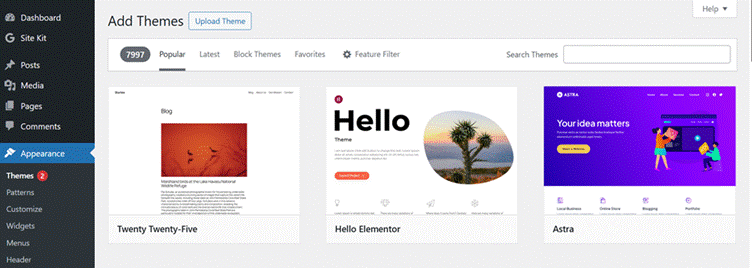
Every available theme is not designed for high performance. You can come across some flashy themes that have unwanted scripts. These scripts make them heavy and slow down the site’s speed.
Do this to optimize your theme:
- Select light themes like Astra, Oceanwp, etc.
- Try to exclude themes that have animation with built-in sliders.
- Avoid unnecessary features of the selected theme.
An optimized theme will not only speed up WordPress website loading but also help enhance its performance, which is why choosing the best WordPress themes is essential.
Step 3: Use a Strong Plugin for WordPress Caching
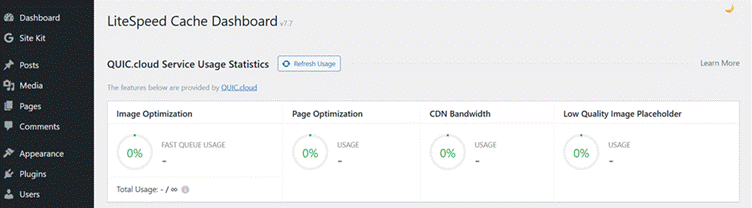
Some experts define caching as the most impressive medium to increase the pace of your website. This is because optimized caching can decrease the 50% load of the site and make it faster. Using a speed up WordPress website speed-up plugin can further enhance these benefits, making performance optimization more efficient. It can also perform the following:
- Save static versions of pages.
- Decrease load on server.
- Increase page loading speed
For this, you can use these caching plugins:
WP Rocket: It is an effective plugin to improve speed. This is because of its features that focus on Core Web Vitals. Moreover, WP Rocket’s font optimization with preloading assistance makes it perfect to use for lazy loading and file minification.
W3 Total Cache: It uses features like object, page, and browser caching to improve efficiency. W3 Total Cache provides pro configuration features that help developers to enhance the performance of websites with complex databases.
W3 Super Cache: It reduces server load by obtaining static HTML files from your site’s pages. W3 Super Cache is a seamless and dependable caching plugin for websites of SMEs.
LiteSpeed Cache: You can get server-level caching with LiteSpeed Cache. Moreover, it also provides image optimization and database cleanup. Above all, it operates best on its own servers to achieve top Core Web Vitals efficiency.
| Plugin Name | Use For | Key Features | Best For | Free/Paid |
| WP Rocket | Caching & Speed optimization | Page caching, minification, lazy load, CDN | Beginners & high-traffic sites | Paid |
| W3 Total Cache | Caching | Caching for Page, object & browser with CDN support | Advanced or Pro users | Free/Paid |
| WP Super Cache | Caching | Easy setup with Static HTML caching | Blogging website | Free |
| LiteSpeed Cache | Caching | Server-level caching, image optimization | LiteSpeed hosting users | Free |
| Autoptimize | Asset Optimization | Minify CSS/JS and font optimization | Front-end optimization | Free |
| WP-Optimize | Database & Cache | Database cleanup, caching, image compression | All-in-one optimization | Free/Paid |
| Perfmatters | Performance | Script manager, font optimization | Core Web Vitals improvement | Paid |
| Smush | Image Optimization | Image compression, lazy loading | Websites that have lots of images | Free/Paid |
Step 4: Optimize Pictures without Compromising Its Quality
Pictures are the largest files on your website. Therefore, if you want to speedup WordPress website for mobile and desktop, you need to adopt these practices:
- Compress pictures before uploading them to the website.
- The best image format is WebP
- Activate lazy loading features.
- Resize pictures in ideal dimensions.
For this, you can use these plugins:
Smush: It compresses images without damaging their quality. Smush offers bulk image optimization with automatic resizing. Moreover, its lazy loading feature makes it perfect for websites that deal with heavy images.
Imagify: Enjoy smart image compression with Imagify. Moreover, you can utilize its advanced modes like aggressive, ultra, etc. It improvises load speed without disturbing the visual quality of your image.
ShortPixel: It uses advanced algorithms to compress not just images but also PDFs. ShortPixels supports AVIF and WebP image formats with bulk image optimization and lower page size. All these enhance the website’s performance.
Step 5: Minify HTML, JavaScript, and CSS
Minification is crucial as it reduces the size of code flies by eliminating its useless characters. There are some other advantages like:
- Quicker file downloads
- Less server requests
- Enhanced Core Web Vitals
Therefore, using caching plugins that support all these minification is necessary to speed up wordpress website loading worldwide.
Step 6: Utilize a Content Delivery Network (CDN)
A CDN allocates your WordPress files to various international servers.
Advantages of Using a CDN:
- Quicker load times for international users.
- Lower server load.
- Better uptime reliability
You can use these CDNs:
- Cloudflare
- StackPath
- Bunny.net
Remember, if your users are international, a CDN is crucial to optimize WordPress website loading.
Step 7: Optimize WordPress Database
With time, your website’s database gets loaded with useless data. Therefore, you need regular optimization of your database to enhance backend efficiency.
These things should be clean:
- Trash comments
- Post revisions
- Unused tables
- Transients
2 Important Tools for Database Optimization:
- Advanced Database Cleaner
- WP-Optimize
Step 8: Do not Use Unnecessary Plugins
Unnecessary plugins can reduce your website’s speed. Moreover, if you need to speed up wordpress website plugins, you first need to optimize your plugins.
Tips to Optimize Plugin:
- Remove useless plugins
- Avoid duplicate plugins
- Substitute heavy plugins with other light plugins options
Step 9: Activate GZIP and Browser Caching
GZIP can be used to compresses files before sending them to the internet browser. Similarly, Browser Caching saves static files in your browser to save time and improve speed.
Above all, both can be accessed via hosting dashboards or caching plugins. Combinedly, they help to speed up the WordPress website.
Step 10: Optimize for Core Web Vitals
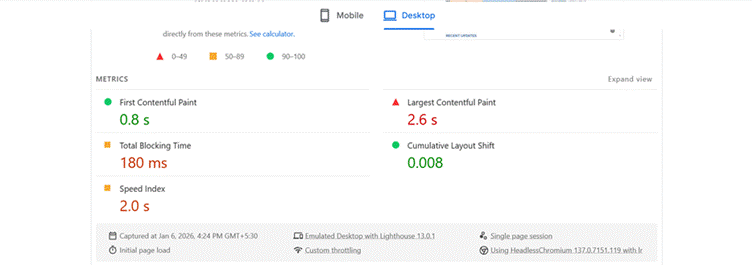
Core Web Vitals analyzes real-time user experience with these three important metrics:
- Largest Contentful Paint (LCP): How quick the major content is loading.
- Cumulative Layout Shift (CLS): How stable the layout remains during loading.
- First Input Delay (FID): How quickly does the site react to user interactions.
All you need to do is rectify them for WordPress Core Web Vitals optimization.
Some of the ways you can use are:
- Preloading fonts
- Reducing resources that are blocking rendering.
- Optimizing above-the-fold content
- Defer scripts that are not critical.
Step 11: Deactivate Hotlinking and Reduce External Scripts
Using external scripts like fonts, embeds, and ads can reduce your site’s speed.
For instance, if you’ve content-heavy website, you can use these optimization tips:
- Do not overuse third-party scripts.
- Use self-host fonts.
- Deactivate image hotlinking feature.
Beginners’ vs Advanced Optimization: Find the difference
| Beginners Level | Advanced Level |
| Optimized Hosting | Optimized Database |
| Light Theme | CDN Integration |
| Good Caching | Optimized Core Web Vitals |
| Uploading Optimized Image | Code Minification |
“If you want instant speed boost…” 🚀 Get High-Speed WordPress Hosting
In the End: Time to Speed Up the WordPress Website in Correct Manner
If you are learning tricks to speed up the WordPress website, you are investing in better conversions and revenue. The quicker your website loads, the better your user experience and traffic will be. That’s why you can see these 11 steps provided in this article. All these steps can be useful as a combination or can be used individually too.
Moreover, there is no need to start from an expert level. If you are a beginner, you can still optimize its caching, theme, and hosting. Furthermore, you can shift towards advanced optimization techniques like improving Core Web Vitals.
Therefore, your continuous work for WordPress optimization will definitely improve its speed and attract more users than before. Remember, better speed is not magic but a result of constant efforts and measures.
Disclosure: Some links on Themezhub are affiliate links. We may earn a commission if you make a purchase through them.