


Introduction to Add Meta Tags in WordPress
If you know how to add meta tags to WordPress, then you are completing around 20% of your on-page SEO requirements. This tag plays an important part in helping search engines determine your website. Similarly, it also assists in deciding how your webpages appear in search results.
Meta tags are one of the basic elements of your website’s on-page SEO. For instance, it can improve your click-through rates and make sure your website gets an optimized indexing. However, many users or owners are still unaware of its critical role and impact.
That’s why this tutorial will let you learn how to put meta tags in WordPress. Find out the beginner-friendly steps and seamless process to add them. Moreover, you can also read about some critical elements like canonical tags and image alt to enhance your knowledge.
Know More About Meta Tags and Its Impact on A WordPress Site
They are a small fragment of HTML code that delivers information about your webpage to browsers and search engines.
You can’t see them on the page as they are placed in the <head> section of the website.
Why Are They So Crucial? Here Are the Reasons:
- They aid browsers to understand the content of your web page.
- They boost on-page search engine optimization.
- Regulate page appearance in web search results.
- They control content duplication.
- Improve web usability and accessibility
Above all, it is critical to remember that without them, a website will struggle even with top-notch content.
Types of Meta Tags You Can use in WordPress
Before finding out how to add meta tags to WordPress, let’s find out about their various types.
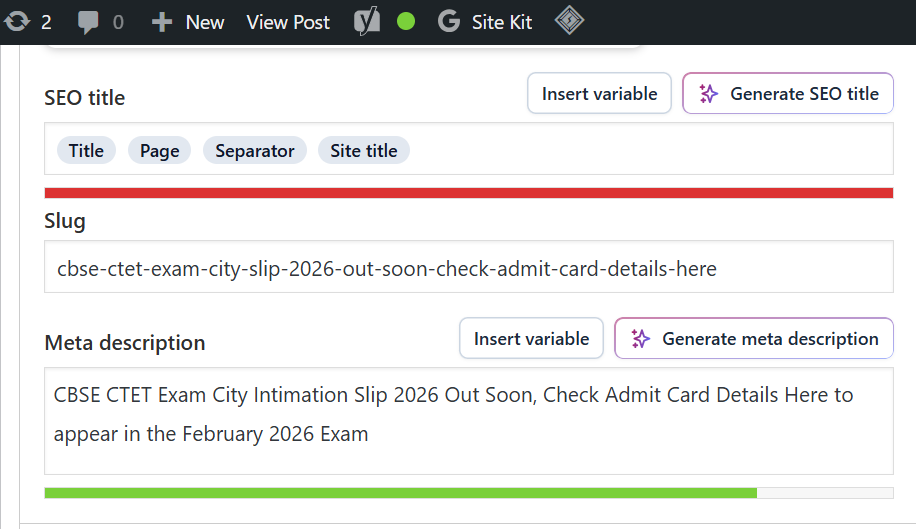
- Meta Title: Should be somewhere in the range of 50-60 characters.
- Meta Description: Its ideal range is 140-160 characters but should not be more than that.
- Meta Bots (index/noindex)
- Image alt Tags
- Canonical Tags
- Open graph Tags
They all play a different, yet crucial part and therefore should be managed accordingly.
How to Put Meta Tags in WordPress? Find Important Methods
Method 1: Tricks to add meta tags via SEO plugins
If you’re a beginner or not very technical, plugins are the easiest way to add these tags to your website. Tools like Advanced Custom Fields plugins make it simple to manage everything without touching a single line of code.
Popular SEO plugins for this:
Rank Math: Rank Math SEO is one of the best SEO plugins that assists you with meta tag integration. Moreover, its other features like built-in automation, content optimization, AI-driven suggestions, and smart SEO controls, make it stand ahead of others. You can check out our other article to know more about the Rank Math SEO plugin.
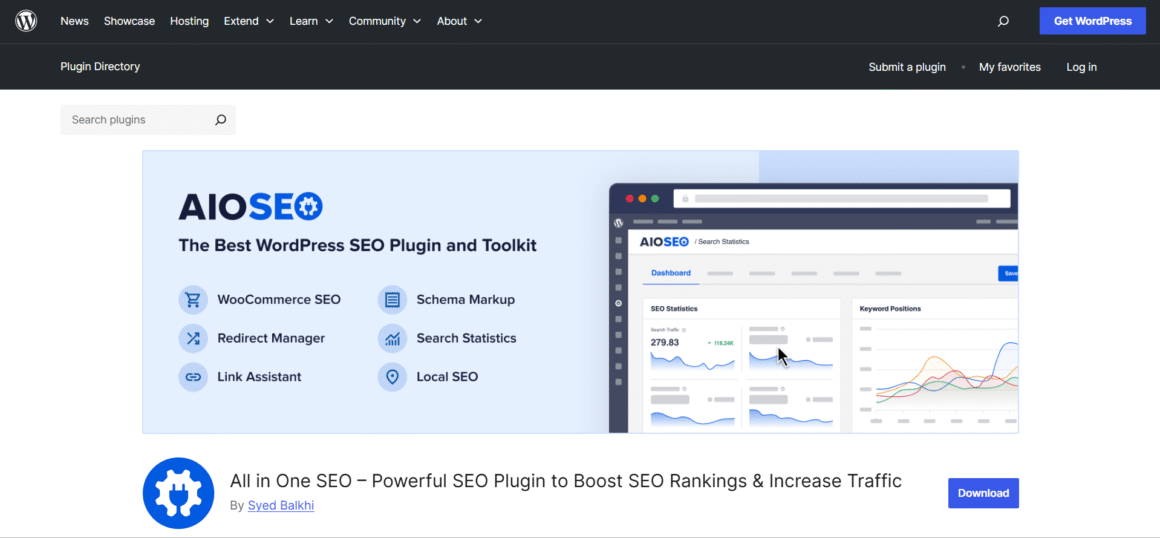
Yoast SEO: It helps in WordPress optimization by handling meta titles, XML sitemaps, descriptions, canonical URLs, etc. All these features make your site’s on-page SEO seamless.
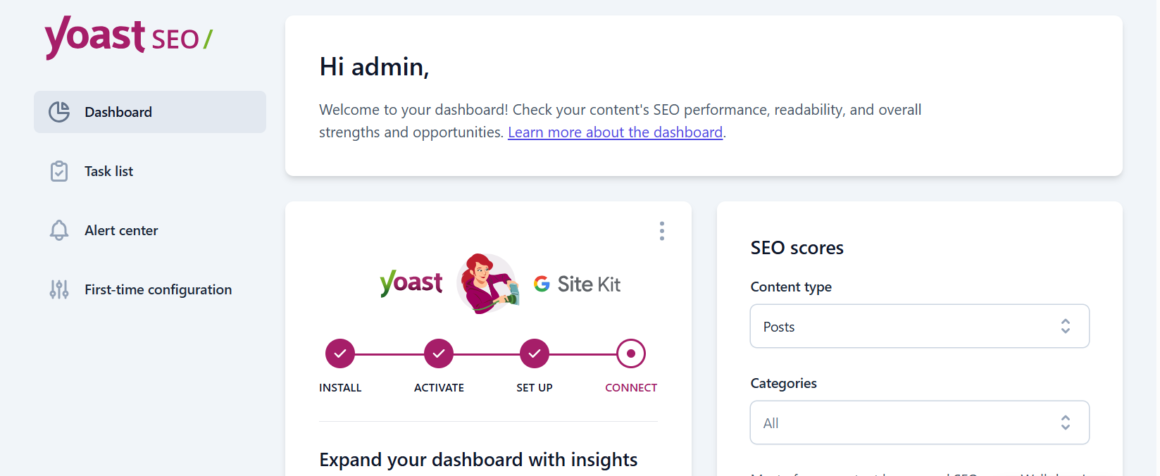
All in One SEO: You can easily add meta tags and optimize sitemaps, indexing, and web pages. It provides an engaging dashboard loved by both beginners and pro users alike. Therefore, you don’t need to code anything to add meta tags in WordPress.
General Steps to Add using these plugins (common to all)
- Go to plugins, click on “add plugins” in it.
- Search for the plugin name.
- Install and activate it.
- Go to any page or article in the WordPress editor section.
- Check the SEO setting panel and write your SEO title and meta description.
- Click on the update button.
Method 2: How to add meta tags without using plugins
If you are aware of the tech aspects and want to keep your website lightweight, you can add them without a plugin.
Here’s how you can:
- Firstly, go to Appearance then select Theme File Editor
- Click and open header.php
- Find the <head> section
- Add meta tags like the one sample given below
<meta name="description" content="Your page description here">
<meta name="robots" content="index, follow">
Critical points to remember after finding how to add meta tags without using plugins:
- This method is best if you are a developer.
- Before editing backend files, back up your website.
- Any change can reflect on the entire website.
- Do not prefer this method, if you are a beginner.
Method 3: Meta Tags in WordPress for Homepage
Homepages need special attention as they generally aim for competitive and useful keywords. Therefore, you should know how to add meta tags to WordPress for homepage.
Add via SEO Plugin:
- Go to the SEO tab and click on Titles & Meta.
- Go to homepage settings
- Write homepage meta title and meta description
Manual Way:
You can use conditional logic to add homepage-oriented meta tags in header.php
Optimized homepage meta tags can help you improve clicks on your website.
Method 4: Meta Tags for Social Media:
Recommended in Current Time Meta tags for social media review and regulate how your content looks when shared on various social platforms. For this, you need two crucial social media tags; Open Graph (for Facebook) & Twitter Cards (for X)
Furthermore, most SEO plugins auto-manage these tags, but you too can handle tags like:
- Social Title
- Social Description
- Social Image
How to Add Alt Tags to Images in WordPress: Essential for SEO
You need optimized images on your web pages for better on-page SEO. Many users ignore this fact and damage their own optimization.
Alt tags: Definition and Importance
These tags define an image’s content in the text form. They are important to:
- Enhance image optimization
- Improve accessibility of the page
- Deliver context if the image fails to load.
As search engines depend on it for SEO, let’s find how to add alt tags to image in WordPress
- Choose the picture you want to upload from the media library.
- Click on it.
- a text: Enter text description in the Alt Text column.
- Save the picture.
Best practices to adopt while adding:
- Clearly define the picture.
- Do not stuff keywords
- Try to use natural and meaningful words
How to Add Canonical Tags to WordPress: Necessary to Avoid Duplication
Content duplication results in confusion for search engines and therefore it can cause poor ranking. However, you can solve it by adding canonical tags.
Canonical tags define search engines about the priority of pages and tell which is the main one among all pages.
Steps to add them:
- Click on Edit post or pages
- Open SEO plugins settings
- Check the Canonical URL
- If required, add the preferred URL
Above all, most SEO plugins are embedded with auto canonical tags generation. However, for better manual control, you should know how to add canonical tags to WordPress.
Do Not Commit These Mistakes: Common Errors to Avoid While Adding Meta Tags
Knowing how to put meta tags in WordPress is not enough if you don’t eliminate these common errors:
- Leaving meta titles blank
- Duplication content for meta descriptions
- Stuffing excessive keywords
- Missing canonical tags and alt tags
- Using too much auto-generated descriptions
- Ignoring clean meta optimization
How to Check Meta Tags’ Working Status: These Tools Can Help
If you want to test how effective these tags are, use the following tools to audit your keywords.
View Page Source: It provides webpage HTML code inspections straight to your browser. Therefore, you can easily verify the working status of all SEO-related meta tags.
Google Search Console: It is the best tool to check how Google is indexing your website. With Google Search Console, you can analyze URLs and meta tags and find SEO-related issues.

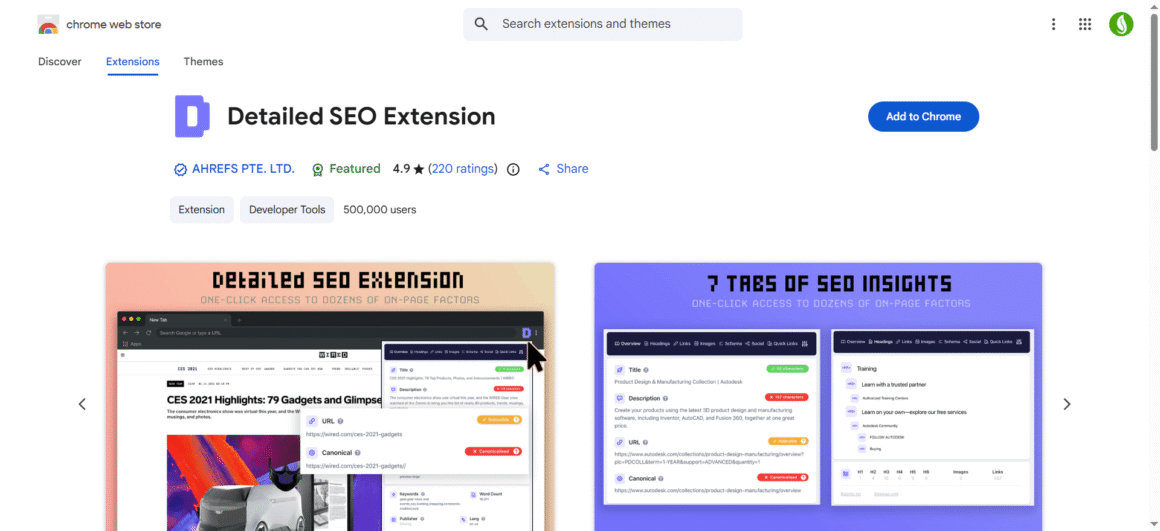
SEO Browser Extensions: You can see all important SEO elements like meta titles, canonical tags, descriptions, and more on these extensions. Similarly, they provide quick insights without needing any external tools.
In Conclusion: Add Meta tags to WordPress for Better SEO
It is equally important to add meta tags and learn how to check meta tags’ working status for better SEO. No matter what source you are using to add them, the end goal will be the same, i.e., achieving better search engine optimization on your web pages.
Better SEO reflects optimized traffic and control on your website. These meta tags might seem unnecessary, but their impression on CTR and ranking is very big and crucial.
Moreover, you should revisit them during content updating, rebranding, new keywords targeting, and CTR enhancing. This will keep the optimization active and will not let your traffic decrease due to changes.
That’s why we have presented these methods that can help you achieve your tasks. Above all, do not forget to give importance to canonical and alt tags. Ignoring both can have a dampening effect on your WordPress website.