


You can spend hours trying to fix your website’s Core Web Vitals score and still get nowhere. Many people install a caching plugin and compress every image on the website. Some even switch to faster hosting, but the website fails Google’s Core Web Vitals assessment. The problem usually is not effort, but using every random tip available on the internet. They need to find the biggest bottleneck first and fix it. It works better than running down a checklist in order.
Google Core Web Vitals track three things. How fast your main content shows up. How your website reacts when someone clicks or taps. How stable the page stays as it loads. Rankings care about this, sure, but there is a simpler reason to care too. A visitor stays longer on a page that feels fast and steady. The same visitor leaves fast when a page hesitates to load, or things jump around while they are reading.
This guide walks through a process, not a list of forty random tips. You will learn how to spot performance problems, which tools actually show you something useful, and which fixes are worth your time.
What Are Core Web Vitals?
| Metric | Good Score | Needs Improvement | Poor |
|---|---|---|---|
| Largest Contentful Paint (LCP) | ≤ 2.5 seconds | 2.5–4 seconds | > 4 seconds |
| Interaction to Next Paint (INP) | ≤ 200 ms | 200–500 ms | > 500 ms |
| Cumulative Layout Shift (CLS) | ≤ 0.1 | 0.1–0.25 | > 0.25 |
Core Web Vitals try to capture something genuinely hard to measure. How a website actually feels to use. A page can look polished on screen and still leave someone frustrated. Maybe it loads slowly. Maybe it reacts late to a click. Maybe it shifts around while someone is trying to read it.
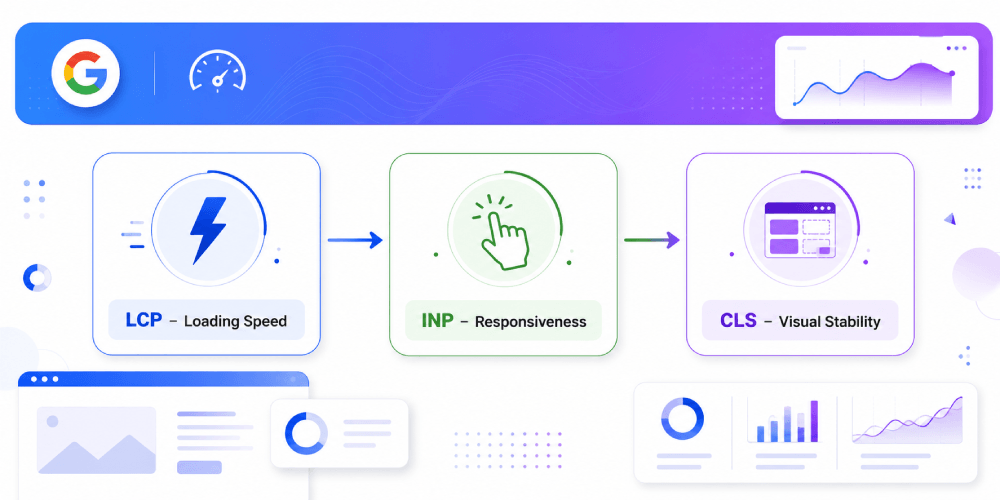
Google narrows this down to three metrics that shape most of that experience:
LCP measures one specific thing: how fast the main content becomes visible. A fast LCP means the visitor sees something loading right away. A slow one leaves them staring at a blank white screen, wondering if the page is even working.
Interaction to Next Paint (INP) replaced First Input Delay. It measures the reaction of a website as a user clicks, taps, or types into a field. Slow reactions convince people something is broken.
Then there’s CLS, or Cumulative Layout Shift. This one tracks how much a page moves around while loading. Nothing is more annoying than tapping a button just as it shifts a bit to the left. It causes a lot of accidental clicks that nobody wanted to make.
None of these three metrics work in isolation. Fixing one while ignoring the other two rarely gets you very far. The better approach is figuring out which metric is actually the problem before changing anything.
How to Check Your Core Web Vitals
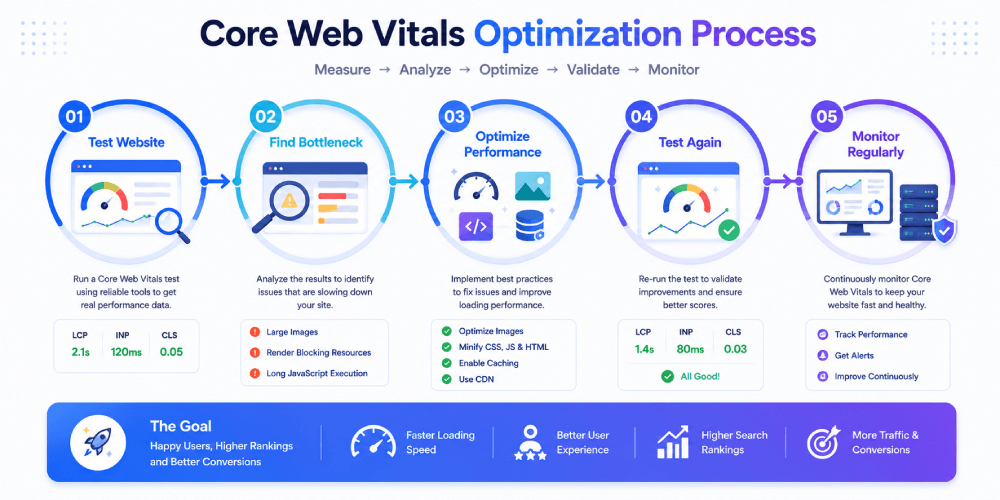
Do not touch your hosting plan yet. Do not install a plugin or start ripping out JavaScript either. Find the actual cause of the slowdown before touching anything else. Guessing wastes time that you probably don’t have. You need to perform a proper website speed test before making changes. It also helps you find the real issues affecting your website’s performance.
A proper Core Web Vitals test tells you where the real issue lives. Server, images, code, or layout. No single tool covers all that. I usually start with PageSpeed Insights, since it flags the obvious opportunities fast. Then I check Search Console to see if the problem shows up across multiple pages. GTmetrix or Lighthouse comes next once I need to dig into what is actually causing the slowdown. One tool gives you a partial answer. A few tools together give you something you can actually act on.
Google PageSpeed Insights
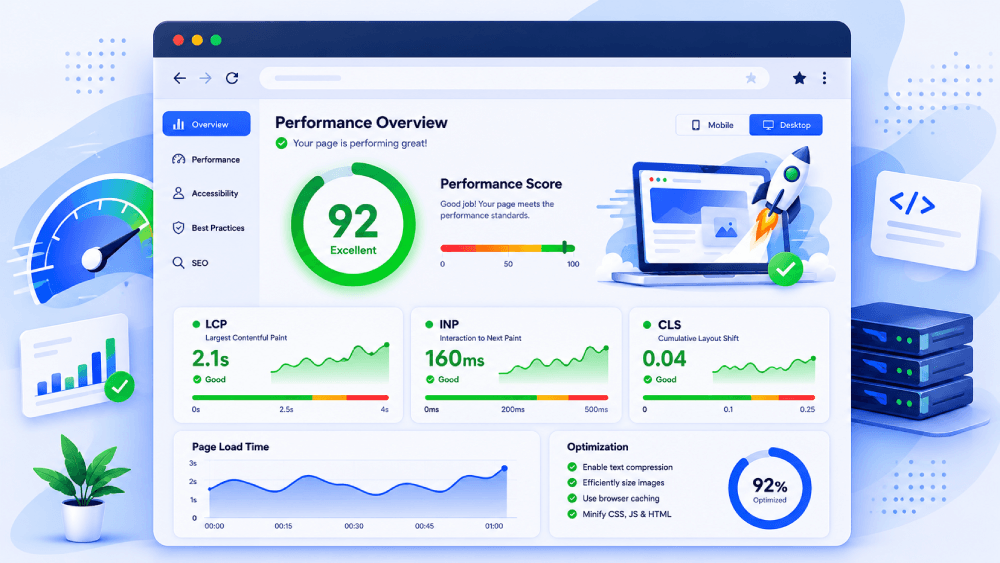
If you only run one test, run this one. Google PageSpeed Insights combines real user data, when it has enough of it, with lab data and shows you how your pages stack up against Google’s Core Web Vitals. It also ranks issues by how much they actually affect LCP, INP, and CLS, which makes it a solid starting point before you touch anything.
Google Search Console
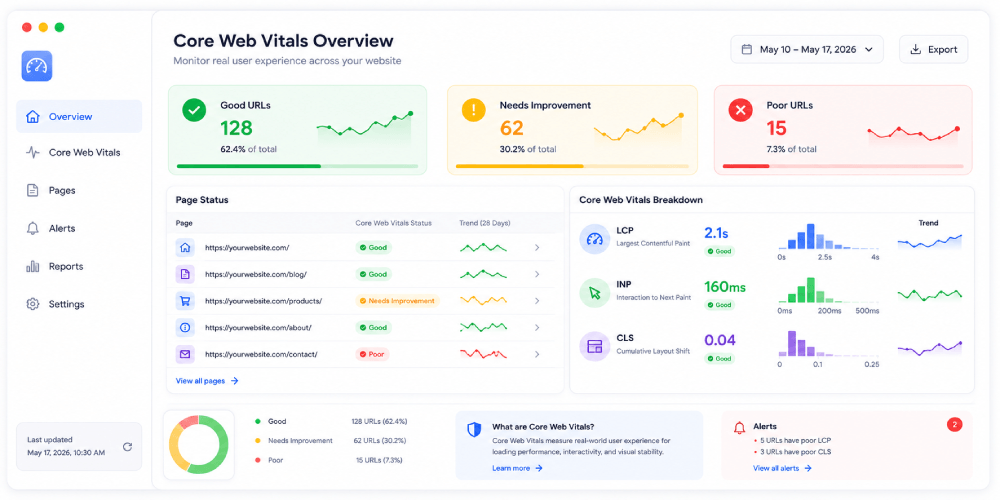
A single-page speed test only shows you a snapshot. Search Console tracks your website over time instead. It groups similar URLs and flags the ones that keep failing Core Web Vitals, based on data from actual visitors, not a lab simulation. On a large website, this report saves you from checking every page one at a time.
Lighthouse
Lighthouse lives inside Chrome DevTools, and it is built for testing changes while you are still developing. It generates a detailed report, flags whatever is blocking rendering, and points out chances to improve accessibility and SEO along the way. Since it runs on lab data, it works well for catching problems before you publish anything.
GTmetrix
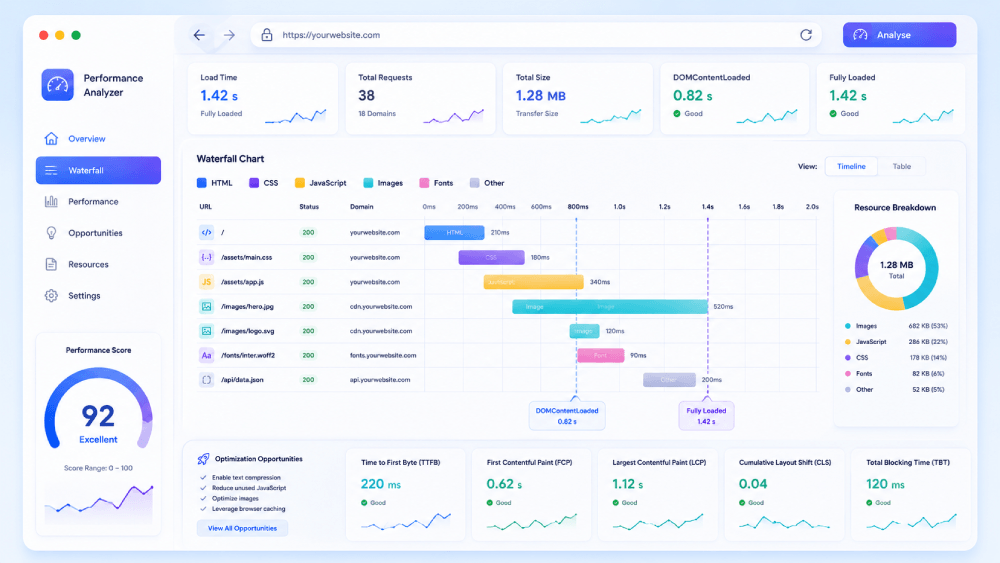
GTmetrix goes a step past a basic web test speed check by showing exactly how a page loads, piece by piece. The waterfall chart lays out where the time actually goes. A server request that takes too long to respond. An image file larger than it needs to be. A third-party script that blocks other resources from loading until it finishes. PageSpeed Insights tells you what is slow. GTmetrix usually tells you why.
Chrome DevTools
Chrome DevTools suits developers, or anyone comfortable getting into the weeds of a performance report. The Performance panel and Network tab surface long-running JavaScript tasks, layout shifts, and resource bottlenecks that a standard speed test web report will not always catch.
15 Proven Ways to Improve Core Web Vitals
1. Upgrade to Faster Hosting
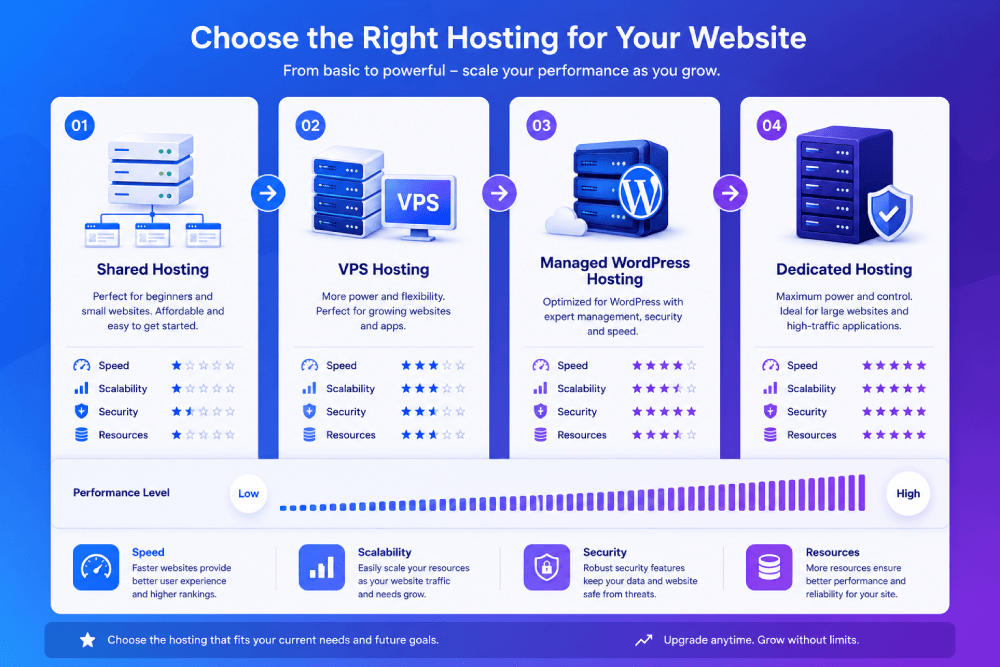
Your website’s performance primarily depends on your hosting provider. If the server takes too long to respond, then it doesn’t matter what optimization you do; it won’t be as effective as it would have been. As a result, Core Web Vitals won’t be improved. If you have a growing WordPress website, then it’s better to ditch the shared hosting because of the limited resources. Shared hosting can slow page delivery during busy periods. You should upgrade to VPS or dedicated hosting to get more resources, depending on your traffic and technical requirements. Also, consider your budget because you don’t want to spend more than you expect to achieve from it.
Managed WordPress Hosting
Managed WordPress hosting takes care of a number of the technical tasks that come with operating a WordPress site. This allows you to focus your efforts on your business. Since this type of hosting environment is designed especially for WordPress, it also gives you superb performance even with little optimization. Here are some of its key benefits:
- Automatic WordPress core updates and scheduled backups.
- Built-in caching and security features for better performance and protection.
- WordPress optimized servers that deliver faster loading speeds.
VPS Hosting
A VPS (Virtual Private Server) offers a dedicated share of server resources to your website so that you don’t have to share everything with other websites. It results in stable performance when your business grows and traffic starts to appear in large numbers. Some key benefits of VPS hosting include:
- Dedicated CPU and RAM resources for more consistent performance.
- Ability to scale as the traffic grows on the website.
- Better control over server settings compared to shared hosting.
Dedicated Hosting
Dedicated hosting means getting an entire physical server to host your website. You won’t have to share your resources with other websites. It is a great choice for websites that receive high traffic or applications that require maximum performance. Some key benefits of dedicated hosting include:
- Exclusive access to all server resources.
- Maximum performance for websites utilizing several resources.
- Complete control over server configuration and software.
2. Choose a Lightweight WordPress Theme
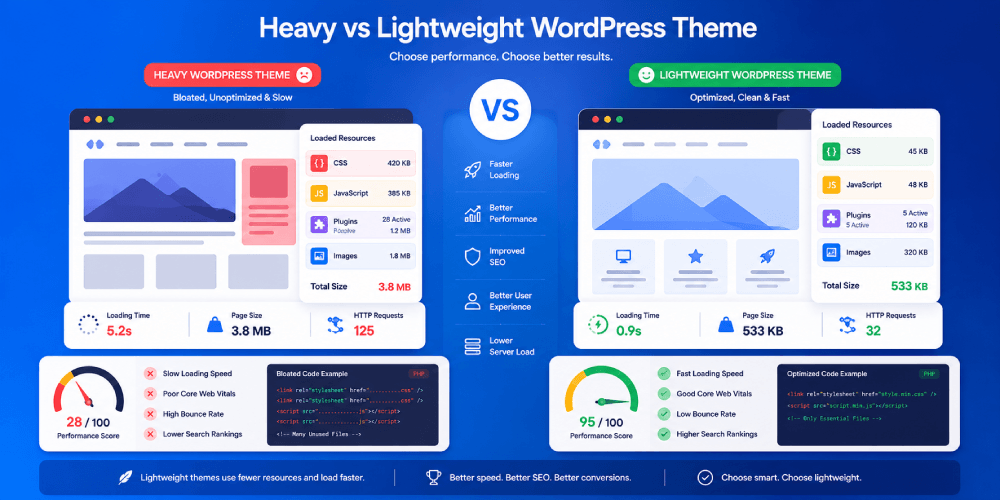
A theme sets a real ceiling on Core Web Vitals, more than most people expect going in. CSS files on some themes run far larger than a single page could ever need. Animation scripts add to the pile, too. Buried JavaScript features join them, tucked so deep in a settings panel that most site owners never stumble across them, much less use any of them. Every bit of it still has to load before the browser renders a single thing on screen. LCP suffers because of it. So does INP.
A lightweight theme cuts through most of that weight from the start. Less code means the browser parses through it faster, and a page becomes visible and interactive sooner as a result. Solid LCP and INP numbers get a lot easier to hit this way, before anyone even touches an optimization plugin.
Two moments matter most for making this choice: the start of a brand-new build and the planning stage of a redesign. Get that decision right early, and a whole set of speed problems will avoid the site entirely. A short list of themes tends to earn a spot here again and again:
- GeneratePress: Minimal, clean code has been the standard since its earliest version. CSS and JavaScript get trimmed about as far as a theme can push while the design still looks finished.
- Astra: Loads fast by default and manages to stay that way even as customization options get layered on, which flexible themes don’t always pull off.
- Kadence: Balances real design flexibility against staying lean, without falling into the bloat that flexible themes often carry.
- Blocksy: Leans modern and fast, while still leaving room for genuine customization without it feeling restrictive.
- Neve: Holds up particularly well alongside a page builder, which matters, since page builders are usually where a website’s speed gains quietly disappear.
3. Reduce Server Response Time
A slow server increases the time it takes to deliver the first byte of your page. As a result, everything that follows gets delayed. If you have installed heavy themes, dozens of plugins, and unnecessary redirects, then it can increase the server response time. Other factors that cause this issue include slow database queries and PHP processes that wait for server resources. I have seen websites experience speed improvements by removing a few poorly coded plugins or cleaning up an overloaded database. Reducing server response time can increase the effectiveness of other optimizations, which results in an improvement in Core Web Vitals.
4. Enable Caching
A visitor opens a page, and the server works through several requests before anything actually displays. Skip caching, and the server repeats that same work for every visitor who shows up. Nobody gets a shortcut. Caching solves this by keeping a finished page ready ahead of time. The next visitor gets that page instantly, no rebuild required. There are plugins available using which you can enable caching. I’ve personally used LiteSpeed Cache on Themezhub, and removing unused CSS improved our mobile PageSpeed score from 58 to 82, which works well, but WP Rocket and W3 Total Cache also do the job nicely. I have audited plenty of websites running one of these plugins for years, still sitting on whatever settings shipped out of the box on day one, because nobody ever went back in to actually configure it. Page caching covers one part of the picture. Browser caching and object caching cover two more. Configure these three properly, and you will notice webpages start to load faster.
5. Use a Content Delivery Network (CDN)
All your website’s images, CSS, and JavaScript are stored on a single server. It’s a default setting no matter which hosting you use. Say that the server sits in Ohio. A CDN duplicates those files onto servers in Singapore, London, and São Paulo as well. A visitor browsing from Manila then pulls the file from a nearby server in Asia rather than sending that request across the ocean and back. Shorter distance, faster download. This matters most for a global audience. It matters far less for a website where every visitor already lives close to the hosting location, since there isn’t much distance left to cut. A CDN supports a website that’s already optimized elsewhere. It cannot fix slow hosting or messy code underneath it.
6. Optimize Images
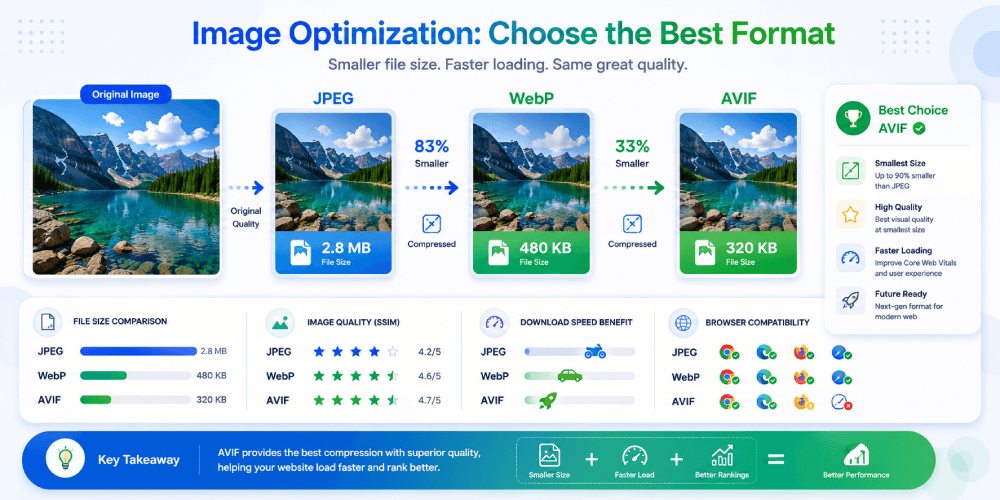
Large image files can slow your website. This can negatively affect Core Web Vitals. Start by resizing images to the maximum dimensions your website actually displays. Then compress them using tools like TinyPNG or ShortPixel to reduce file size without noticeably affecting quality. Finally, convert them to WebP, which usually produces smaller files than JPEG or PNG while maintaining similar image quality. Simply converting an image to WebP isn’t enough. You will get the best results when it’s also properly sized and compressed.
7. Enable Lazy Loading
A page doesn’t need every image to load the instant a visitor lands on it. Lazy loading holds anything below the visible screen. That content waits until someone actually scrolls close enough to need it, which trims down what gets downloaded during that first load. One image should never get delayed, though: the hero banner or anything above the fold. Apply lazy loading there, and the content a visitor expects to see immediately shows up late instead, which drags down Largest Contentful Paint rather than helping it.
8. Remove Unused CSS
Plenty of WordPress themes and plugins load styling meant for features a given page never actually uses. That CSS still has to be downloaded, and the browser still has to parse it before rendering anything visible, regardless of whether the page needs it. Stripping out unused CSS lets content appear sooner. Deleting styles manually carries risk, since a layout can quietly break somewhere unexpected, sometimes not noticed until a visitor points it out. WP Rocket, LiteSpeed Cache, and similar build tools can find and remove unused CSS safely, leaving the rules a design actually depends on untouched.
9. Minify CSS and JavaScript
Every file carries some dead weight in the form of extra spaces, line breaks, and comments meant for developers rather than browsers. Minification strips that out, trimming file size by a modest amount. A lot of website owners expect minification by itself to fix a slow website. A heavy script stays heavy after minification. A slow server response stays slow too. This step belongs stacked on top of the bigger fixes on this list, not standing in for them.
10. Reduce Third-Party Scripts
A chat widget adds a request. So does an analytics tool, an ad platform, or a social share button, each one loading the moment the page does. None of them seem to matter in isolation. Stack five or six together, though, and the slowdown becomes obvious fast. Adding one more tracking script deserves a real question first: does it actually earn its place on the page? Two or three analytics platforms, all collecting nearly identical data from the same visitors, run side by side on more websites than people realize. Cutting the ones that don’t reduces page weight and improves responsiveness, often more than another round of code cleanup would.
11. Optimize Fonts
Custom fonts genuinely help a brand feel distinct. That benefit isn’t free, though. Three font families times three weights, regular, bold, and italic, come out to nine font files. I once found a website loading all nine on every single page, while the actual design only ever called on two of them, a regular weight for body text and a bold for headers. The other seven downloaded every time, for nothing. Hosting fonts locally and preloading the ones that matter most helps too.
12. Limit Layout Shifts
Tap a button and watch it jump somewhere else a half-second before your finger lands, and that specific frustration has a name: Cumulative Layout Shift, one of Google’s three Core Web Vitals. It usually traces back to an ad, an image, or embedded content loading onto the page without reserving space for itself first. Setting width and height on images ahead of time solves most of this. New content should never get inserted above something a visitor is already looking at.
13. Delay Non-Essential JavaScript
Plenty of scripts on a page don’t need to finish loading before a visitor can actually use it. Delaying the non-essential ones lets the browser put its attention toward the content people came for first, which makes the page feel faster even before every script has caught up. Navigation menus and checkout scripts don’t belong in that category, though. Delay either one, and a visitor risks clicking something that simply doesn’t respond. After making a change like this, it’s worth testing the core paths on the website by hand: search, contact forms, checkout, and navigation, just to confirm nothing quietly broke along the way.
14. Keep WordPress Updated
An outdated plugin or theme carries two costs at once. Security risk grows the longer it sits unpatched, and whatever performance improvements shipped in newer versions never arrive either. Back up the website before touching any update. Test the update on a staging copy first, if one is available. Most conflicts get caught there, long before they ever reach a live website.
15. Monitor Core Web Vitals Regularly
A website that scored well last quarter offers no guarantee about this one. The slide rarely needs a dramatic cause. A new plugin does it. A theme update does it. Someone adds a tracking script without a second thought toward page speed, and that does it too. Run a fresh test in PageSpeed Insights. Check the Core Web Vitals report in Search Console next. GTmetrix comes in after that if something still isn’t adding up. A regression caught within a week is a small fix. The same regression caught three months later, once traffic has already dropped and nobody knows why, is a much bigger one.
Common Core Web Vitals Mistakes
People go after a better Core Web Vitals score by reaching for whatever fix requires the least work, instead of the fix that actually addresses what’s wrong with their website. That mismatch explains a lot of optimization work that goes nowhere.
Ignoring Mobile Performance
I’ve reviewed websites scoring in the 90s on desktop that fall to the 40s the moment mobile testing kicks in. A weak network connection and a less powerful processor take a minor inefficiency and make it obvious on a phone, in a way a desktop test never catches. Ranking has been based on the mobile version of a website since 2019, when Google made mobile-first indexing the standard. One client’s page passed its LCP check comfortably on desktop, then loaded a full three seconds slower on a mid-range Android phone running over 4G. Test both before trusting either result.
Uploading Oversized Images
A camera or a design tool exports images at whatever resolution it defaults to, usually far larger than any website actually needs. Someone uploads that file straight to WordPress, and even a solid compression plugin running afterward can’t undo the fact that the image started three or four times larger than necessary. Resize to the actual display dimensions before the file ever gets uploaded, and loading speed improves on its own from there.
Installing Too Many Performance Plugins
Three caching plugins, or two image optimizers running side by side, sound like extra protection. In practice, they tend to fight over the same resources, sometimes minifying the same file twice or caching conflicting versions of a page. One website I worked on had two separate plugins, both trying to manage lazy loading at the same time. Every overlapping stack of plugins I’ve ever untangled ended up performing worse than a single, properly configured one.
Forgetting to Test After Updates
A plugin update ships on a Tuesday. Nobody checks Core Web Vitals again until a client calls three weeks later asking why the website feels slower. Run a page speed test right after any plugin update, theme change, or new integration, while it’s still easy to trace the slowdown back to whatever just changed.
Optimizing Only for Desktop
Desktop scores look better almost by default, since desktop machines run on faster processors and more stable connections than the phone most visitors are actually using. Optimize only for that environment, and the visitors making up the majority of most websites’ traffic never see the benefit. Mobile-first optimization tends to deliver the bigger long-term win, precisely because it’s the harder target to hit.
Core Web Vitals Optimization Checklist
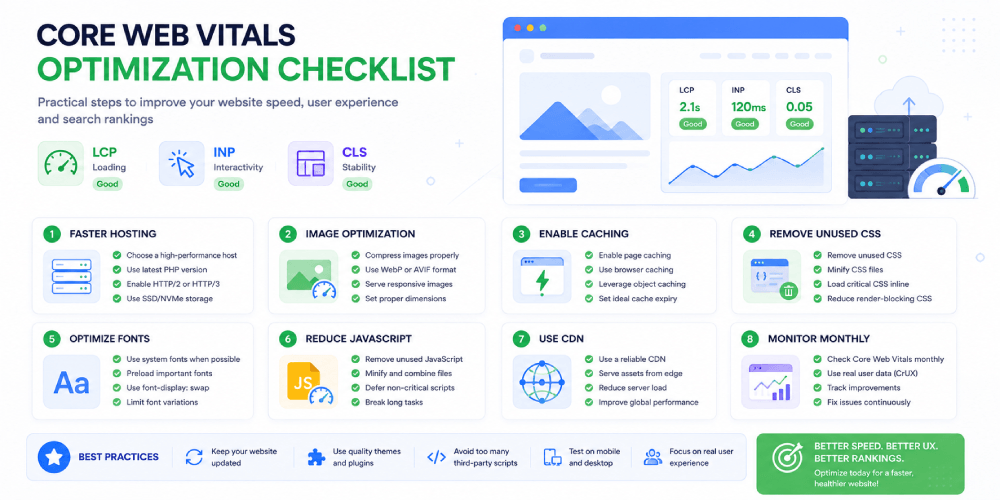
Before You Start:
- Run a Google PageSpeed Insights test
- Check the Core Web Vitals report in Google Search Console
- Identify whether the issue is LCP, INP, or CLS
- Create a backup before making any optimization changes
Hosting & Server:
- Upgrade from slow shared hosting if needed
- Use Managed WordPress Hosting or VPS Hosting
- Update to the latest PHP version
- Enable server-side caching
- Reduce server response time (TTFB)
Images:
- Resize images before uploading
- Compress images
- Convert JPEG/PNG images to WebP or AVIF
- Exclude above-the-fold (hero) images from lazy loading
WordPress Optimization:
- Enable page caching
- Enable browser caching
- Remove unused CSS
- Minify CSS and JavaScript
- Delay non-essential JavaScript
- Remove unused plugins and themes
Fonts & Assets
- Host Google Fonts locally
- Preload critical fonts
- Limit the number of font families and font weights
- Reduce unnecessary third-party scripts
Layout Stability (CLS)
- Specify width and height for all images
- Reserve space for ads and embedded content
- Avoid inserting content above existing elements
Mobile Optimization
- Test your website on mobile devices
- Check PageSpeed Insights Mobile Score
- Optimize touch responsiveness (INP)
- Ensure buttons and menus respond quickly
Final Testing
- Re-run PageSpeed Insights
- Verify improvements in Search Console
- Test using GTmetrix or Lighthouse
- Monitor Core Web Vitals every month
Our Final Verdict
Better Core Web Vitals scores don’t come from working through every tip on a list. They come from finding the one or two changes that actually move a specific website’s numbers and ignoring the rest until they matter.
Measure first, with a tool that gives real data instead of a guess. Fix the biggest bottleneck. Test again. Run that loop enough times, and the website becomes measurably faster. A perfect 100 score rarely delivers the payoff most people expect it to. Removing the biggest slowdown almost always does.
Frequently Asked Questions
What are Google’s Core Web Vitals?
The Core Web Vitals of Google are defined as a set of three unique indices. The LCP measures the loading speed. INP measures responsiveness. The CLS indicates visual stability. The aforementioned metrics enable Google to evaluate how the user experiences the web page and give the metrics real significance in terms of webpage performance.
How do I improve Core Web Vitals?
Identify the main issues on the website before doing anything. Switch to faster hosting and optimize the images. Also, enable caching and cut unnecessary scripts. These will most likely improve Core Web Vitals. If not, move to other steps.
How do I check Core Web Vitals?
You can utilize tools like PageSpeed Insights and Google Search Console. While PageSpeed Insights gives you the basics on one page, Search Console provides you with comprehensive information. You can see trends over weeks and months.
Which tool is best for a Core Web Vitals test?
PageSpeed Insights covers most needs on its own. GTmetrix contributes something PageSpeed Insights doesn’t have a waterfall chart showing exactly where load time is going, piece by piece. That detail becomes useful the moment PageSpeed Insights flags a problem without saying much about what’s causing it.
Is Google PageSpeed Insights enough?
Google PageSpeed Insights gives you limited information. It’s better to combine it with other tools like Search Console, GTMetrix, or Lighthouse. Then, you can see the actual gaps in your website.
Why are my Core Web Vitals failing?
Plenty of things can cause this, everything from an oversized hero image to a third-party chat widget someone added months ago and forgot about entirely. Run a test first and identify the issue causing the most damage. Once you fix that issue, run the test again before trying any other solution.