

Migrating a WordPress site is not something people do often. Maybe you are switching hosting providers. Maybe you are building a staging site to test changes. Or you could be pulling a site off your local machine and putting it on a live server for the first time. Doing any of this by hand invites trouble. A single wrong step, and pages break, or the site sits offline longer than anyone wanted.
This is where WordPress migration plugins step in. A solid migration plugin takes over most of the heavy lifting. It moves your files and your database. Your themes and settings usually come along too, and none of it requires touching code. The harder part comes after that: settling on one plugin, since none of them work quite alike.
Here we go through the strongest WordPress migration plugins available in 2026. We walk through what each one offers and what it costs. Then we get into where each one comes up short, so you can settle on something that actually suits your site.
What Is a WordPress Migration Plugin?
A WordPress migration plugin picks up your entire site from one server or host and sets it down on another. None of the file moving falls on you. You do not need to dig through FTP folders or edit database settings yourself. The plugin takes care of nearly all of it.
People use a WordPress migrator for a few common reasons. Some are switching to a new host. Others want a staging copy to test something before it goes live. A fair number are just moving a site from local development onto a real server or duplicating a site they already have.
Manual migration still makes sense sometimes, mostly for developers working on custom builds. Everyone else tends to get more value from a plugin, since it moves faster and carries less risk. Missing files become rare, and pages hold together instead of breaking midway.
When Should You Migrate a WordPress Website?
You may need to migrate your WordPress website if:
- You’re moving to a faster hosting provider.
- Your current host has poor uptime.
- You want better WordPress performance.
- You’re changing your domain name.
- You’re creating a staging website.
- You’re moving from localhost to a live server.
- You’re upgrading to VPS or cloud hosting.
If your current hosting is slow, check out our guide to the best managed WordPress hosting providers before migrating.
What to Look for in a WordPress Migration Plugin
Every WP migration plugin does the same job. But each one goes about it in its own way. It is important to keep the following aspects in mind before you settle on one.
- Ease of use: On a first migration, especially, a cluttered interface will slow you down more than anything else.
- Backup support: Take a backup right before migrating. If something breaks, you will want it.
- One-click migration: Manual steps add up fast, and each one is a chance for something to break.
- Cloud storage integration: Look for support with Google Drive or Dropbox, since they make storing and pulling back backups much less painful.
- Size limits on the free tier: Plenty of free WP migration plugins cap how large a site can be before you have to pay.
- Compatibility with your setup: Many users skip this step, but you should not. Start with your WordPress version. Does the plugin actually support it? Then look at your hosting provider and PHP version. Don’t miss any one of these, or else it may cause errors that are hard to trace back to the real problem.
A good migration plugin should make things easier. It should not add another task to your list.
How We Selected These Migration Plugins
At ThemezHub, we’ve migrated dozens of WordPress websites between shared hosting, VPS servers, managed WordPress hosting, and cloud platforms. While testing these plugins, we evaluated them based on migration success rate, ease of use, website downtime, backup reliability, WooCommerce compatibility, pricing, and overall user experience.
This list includes plugins we have personally used as well as trusted tools widely recommended by WordPress professionals.
1. All-in-One WP Migration
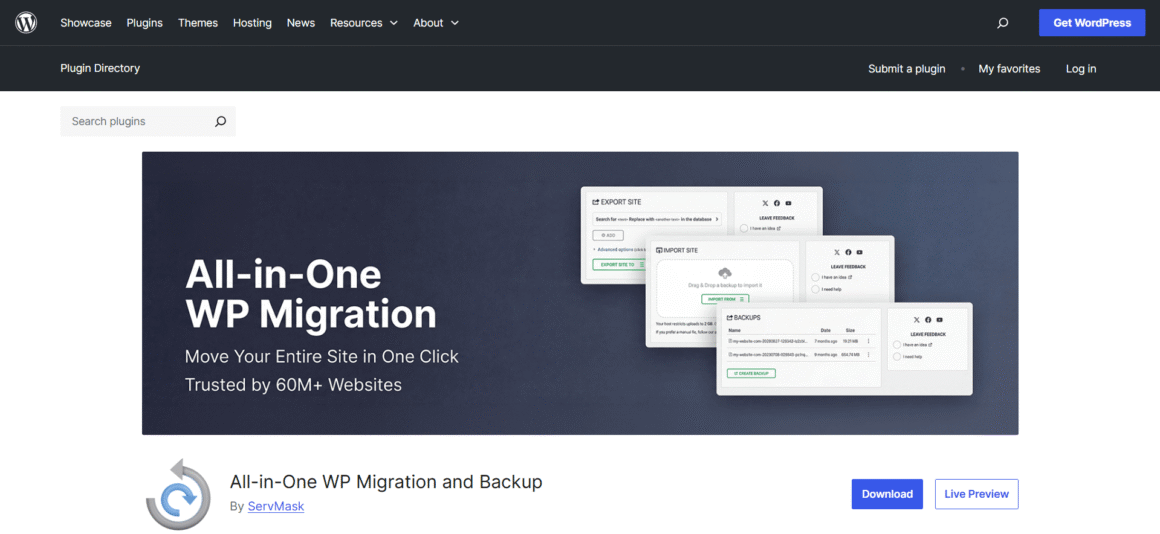
People have been using this plugin for years now. It’s very simple to use, as it packs the website into a single file on export. You then import that same file into the new installation. No database work, no FTP setup, which explains why so many first-time migrations start with this plugin.
Key Features
- One-click export and import
- Beginner-friendly interface
- Cloud storage extensions available
- Works with most hosting providers
Pros
- Very easy to use
- Reliable for small and medium websites
- Regularly updated
Cons
- The free version limits the import size
- Cloud storage requires paid extensions
Pricing
Free plugin. Premium extensions are available separately.
Best For
This one suits beginners, bloggers, and small business owners who want a migration plugin without extra complexity.
2. Duplicator
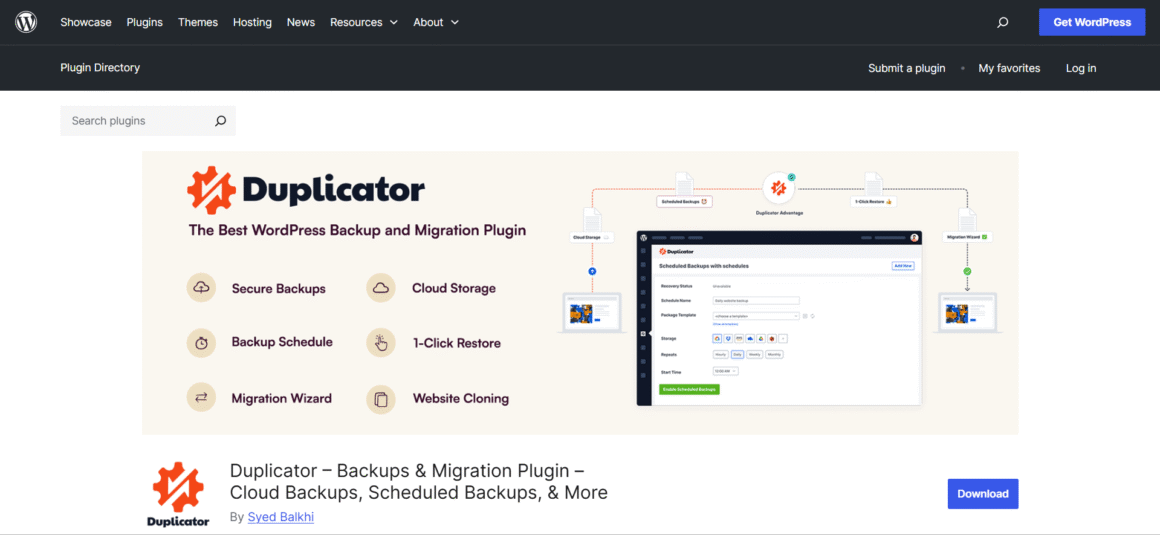
Duplicator works well if you want more say in how the migration happens. Rather than just moving your site over, it packages your files and database together. That package can then be used for migrating, backing up, or cloning a site.
Key Features
- Complete website package creation
- Website cloning and migration
- Scheduled backups (Pro)
- Cloud storage support (Pro)
Pros
- Suitable for beginners and developers
- Great for cloning websites
- The free version covers most migration needs
Cons
- Setup takes a little longer than one-click tools
- Some advanced features require the Pro version
Pricing
Free version available. Pro plans add scheduled backups, cloud storage, and extra migration features.
Best For
Freelancers and agencies tend to like this one, along with anyone who wants backup and cloning built into their migration tool.
3. UpdraftPlus Migrator
Already running UpdraftPlus for backups? You can easily turn on the Migrator feature from there. Backups and migrations share the same system, so you can easily restore a website on a new server without using another plugin.
Key Features
- Migrate websites from the WordPress dashboard
- Restore backups during migration
- Supports multisite installations
- Integrates with popular cloud storage services
Pros
- Ideal for existing UpdraftPlus users
- Combines backups and migration in one tool
- Supports multiple cloud storage providers
Cons
- The migration feature is available only with the premium version
- More features than casual users may need
Pricing
The backup plugin is free. The Migrator feature is included with UpdraftPlus Premium.
Best For
Website owners who want backup and WordPress migration tools in a single plugin.
4. Migrate Guru
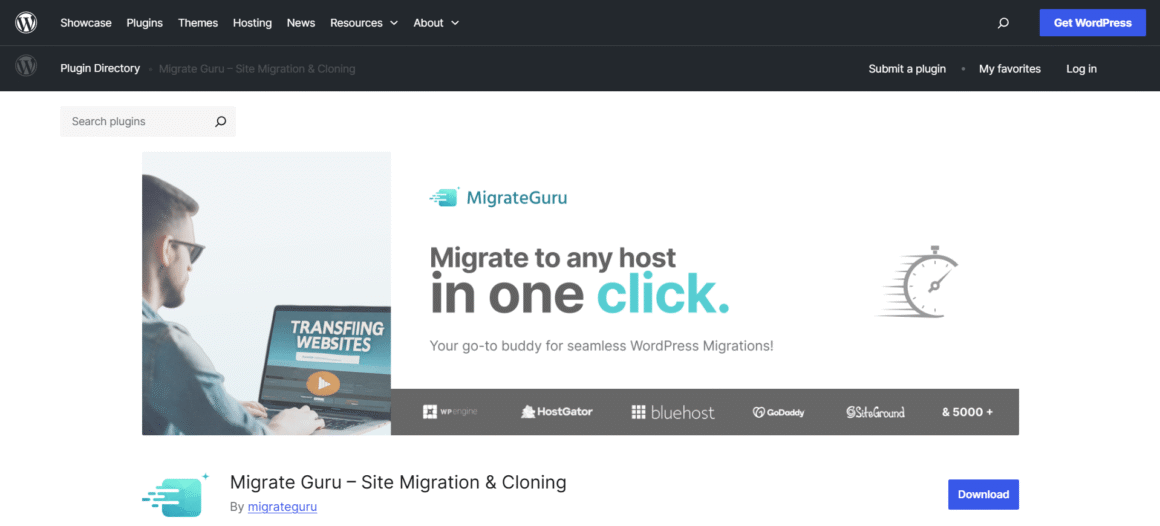
Shared hosting makes large websites hard to move. Migrate Guru gets around that by running the migration on its own servers instead of yours. That takes the load off your hosting account and lowers the chance of a timeout during transfer.
Migrate Guru is an excellent option if you’re moving to one of the best VPS hosting providers for better performance.
Key Features
- Supports websites up to 200 GB
- One-click migration to supported hosts
- No manual download or upload of backup files
- Automatic URL replacement
- Multisite support
Pros
- Well suited for large websites
- Minimal load on your hosting server
- Completely free to use
Cons
- Doesn’t include backup functionality
- Direct migrations work only with supported hosting providers
Pricing
Free.
Best For
Website owners and agencies migrating large WordPress websites without running into server limitations.
5. WPvivid Backup & Migration
WPvivid handles backups and migrations under one roof, so it is worth a look if that is what you want. Moving a site, creating a backup, and restoring one—all of it happens from a single dashboard. Separate tools for separate jobs are no longer necessary.
Key Features
- One-click website migration
- Full backup and restore
- Scheduled backups
- Cloud storage integration
- Automatic migration of files and databases
Pros
- Combines backup and migration in one plugin
- Easy to set up and manage
- The free version includes useful core features
Cons
- Some cloud storage options require the premium version
- Migration speed depends on your hosting environment
Pricing
Free version available. Premium plans add advanced backup, scheduling, and cloud storage features.
Best For
This fits website owners who want a migration plugin that also takes care of regular backups, all from a single dashboard.
6. Solid Backups (BackupBuddy)
Solid Backups went by BackupBuddy before, and the plugin is aimed at people who want migration tools alongside backups they can trust. Already using it to protect your site? Moving to a new host or domain becomes a matter of restoring that backup on the new setup.
Key Features
- Complete website backup and migration
- Scheduled backups
- One-click website restore
- Cloud storage support
- Database and file migration
Pros
- Backup and migration in one plugin
- Automatic scheduled backups
- Simple restoration process
Cons
- No free version
- Better suited for users who need ongoing backups
Pricing
Premium plugin with annual and lifetime licence options.
Best For
This suits businesses and website owners who want a migration plugin they can also count on for backup and recovery.
7. BlogVault
BlogVault does more than handle migrations. Backups, staging, and general site management—BlogVault covers all of it, and that range is a big part of why businesses and agencies pick it. Migrations run through BlogVault’s own servers rather than yours, which keeps downtime low even on the larger sites.
If you are planning to run an online store, you need to read our best WooCommerce hosting comparison.
Key Features
- One-click website migration
- Incremental backups
- Built-in staging environment
- Cloud-based backup storage
- WooCommerce support
Pros
- Fast migrations with minimal downtime
- Includes backup and staging tools
- Handles large websites reliably
Cons
- No free version
- More expensive than standalone migration plugins
Pricing
Premium plans are available based on the number of websites you manage.
Best For
Businesses, WooCommerce stores, and agencies looking for a complete WordPress migration and website management solution.
8. WP Migrate
WP Migrate skips the whole-site-at-once approach. Instead, it syncs databases and media files between different WordPress installations. Teams juggling staging and live environments get the most out of that focus.
Key Features
- Database migration with automatic URL replacement
- Push and pull website migrations
- Media library migration
- Handles serialized data correctly
- Built for staging workflows
Pros
- Excellent for development workflows
- Makes staging-to-live updates easier
- Reliable database migration
Cons
- Less beginner-friendly than most WordPress migration plugins
- Many advanced features require the Pro version
Pricing
A limited free version is available. Premium plans unlock push and pull migrations, media transfers, and additional developer features.
Best For
Developers and agencies that regularly synchronize staging and live WordPress websites.
9. Total Upkeep
Total Upkeep may not be as well known as some alternatives, but it covers the essentials for backups and website migrations. One thing that sets it apart is a built-in check for common site issues before it creates a backup. That step lowers the odds of restoring a backup that was already broken to begin with.
Key Features
- Full website backup and restore
- Website migration support
- Automatic pre-backup site checks
- Scheduled backups
- Roll back after failed updates
Pros
- Easy to set up and use
- Built-in website health checks
- Combines backup and migration in one plugin
Cons
- Fewer advanced migration features than some competitors
- Smaller user community
Pricing
Free version available. Premium plans include additional automation and support features.
Best For
Website owners looking for a simple WordPress migration plugin with reliable backup and recovery tools.
10. Everest Backup
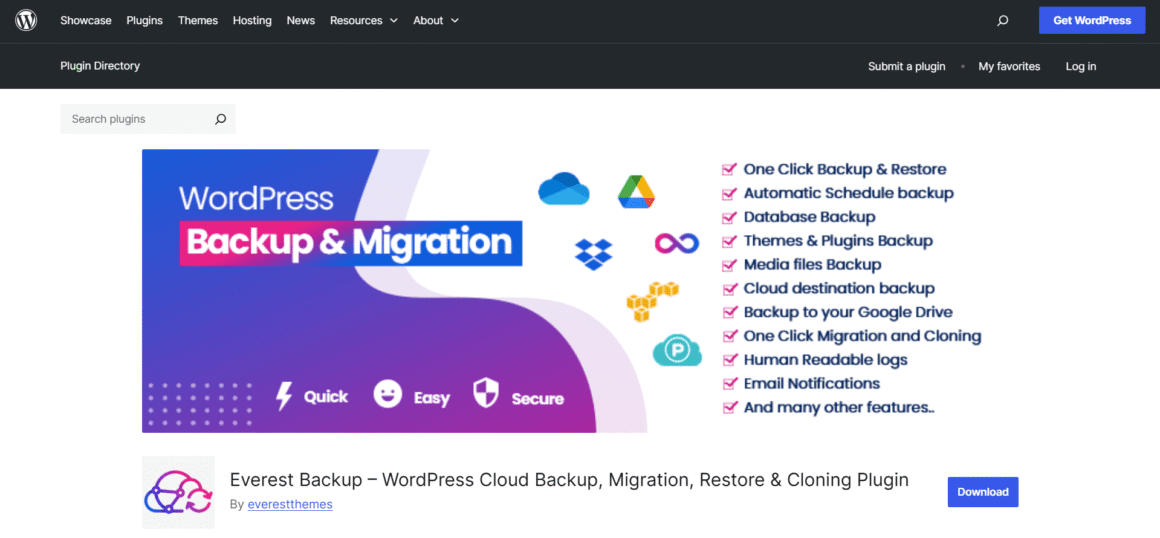
Everest Backup is a newer name in this space, and it keeps backups and migrations under one roof. The interface stays clean, so creating a backup, moving a site, or restoring one does not take much getting used to.
Key Features
- One-click backup and migration
- Scheduled backups
- Incremental backup support
- Cloud storage integration
- Simple website restore
Pros
- Clean, beginner-friendly interface
- Combines backup and migration in one plugin
- The free version covers basic needs
Cons
- Fewer advanced features than established competitors
- Some cloud storage and automation features require a paid plan
Pricing
Free version available. Premium plans add advanced backup, automation, and cloud storage features.
Best For
Beginners and small site owners looking for something easy, with backup capability built right in, tend to land here.
| Plugin | Free Version | Backup Included | Cloud Storage Support | Best For |
| All-in-One WP Migration | ✅ Yes | ❌ No | ✅ Yes (Premium) | Beginners and small websites |
| Duplicator | ✅ Yes | ✅Yes (Pro) | ✅ Yes (Pro) | Freelancers and agencies |
| UpdraftPlus Migrator | The backup plugin is free; the migrator is premium. | ✅ Yes | ✅ Yes | Existing UpdraftPlus users |
| Migrate Guru | ✅ Yes | ❌ No | ❌ No | Large websites |
| WPvivid Backup & Migration | ✅ Yes | ✅ Yes | ✅ Yes | Backup and migration from one dashboard |
| Solid Backups (BackupBuddy) | ❌ No | ✅ Yes | ✅ Yes | Businesses and website owners |
| BlogVault | ❌ No | ✅ Yes | ✅ Yes | WooCommerce stores and agencies |
| WP Migrate | Limited | ❌ No | ❌ No | Developers and staging sites |
| Total Upkeep | ✅ Yes | ✅ Yes | Limited | Everyday website management |
| Everest Backup | ✅Yes | ✅ Yes | ✅ Yes | Beginners and small websites |
Quick Recommendations
| Best Overall: | Duplicator |
| Best Free Plugin: | Migrate Guru |
| Best for Beginners: | All-in-One WP Migration |
| Best for WooCommerce: | BlogVault |
| Best for Agencies: | WP Migrate |
| Best Backup + Migration: | WPvivid |
How to Choose the Right WordPress Migration Plugin
All plugins that we discussed above are good, so it all depends on your website and how you want to use the plugin. A few common situations follow, along with what tends to work for each.
For Beginners
If this is your first migration, look for something with a plain interface and little setup involved. All-in-One WP Migration, WPvivid Backup & Migration, and Everest Backup all keep things simple. None of them asks you to know anything technical going in.
For Large Websites
Bigger sites tend to run into upload caps or server timeouts along the way. Migrate Guru handles large migrations well, since it moves the work onto its own servers. BlogVault works too, especially for business sites that need a smoother transfer.
For WooCommerce Stores
Orders, customer data, product details, a store carries a lot that has to survive the move untouched. BlogVault does WooCommerce migrations with very little downtime, and that alone makes it worth considering here.
For Agencies and Developers
Managing several sites or working across staging environments calls for something flexible. Duplicator does well with cloning. WP Migrate fits better if your main job is syncing databases and pushing changes between development and live sites.
Whether it fits how you already work matters more, along with whether your site moves over without a fight.
Common WordPress Migration Mistakes to Avoid
A migration plan gone wrong will beat even the best plugin on the market. Watching for a few common mistakes can spare you unnecessary downtime and, worse, lost data.
- Skipping a backup: Build a full backup before you start moving anything. If something breaks partway through, you get a restore point instead of starting over from nothing.
- Ignoring PHP and WordPress compatibility: Confirm the new hosting setup actually supports your WordPress version and your PHP requirements before the move begins.
- Overlooking upload size limits: Plenty of hosts cap how large a file you can upload, and that can stop a large migration mid-transfer. Check these limits before you export.
- Not waiting for DNS propagation: Domain changes can take several hours to spread across the internet after you update them. Testing the site too soon just leads to confusion.
- Skipping post-migration testing: Once everything finishes moving, walk through your pages, forms, images, plugins, and links one by one. Confirm each piece still does what it is supposed to.
Spend a few minutes getting ready beforehand, and you will likely skip hours of cleanup later.
Our Final Verdict
All migration plugins are good. It all boils down to your requirements and the features you need while choosing the correct migration plugin.
For basic WordPress websites, All-in-One WP Migration or WPvivid Backup & Migration are good enough. For large websites or eCommerce stores, you can go for Migrate Guru or BlogVault.
Developers and agencies usually go with Duplicator or WP Migrate. Both give more control over how the migration runs. Before starting, back up the site. After the migration is done, go through the site and check that everything is working.”
Frequently Asked Questions
What is the best WordPress migration plugin?
Depends on the site. Beginners tend to land on All-in-One WP Migration because it asks very little of you upfront. Larger sites do better with Migrate Guru. Developers who want more control usually go with Duplicator or WP Migrate. The guide above breaks each one down.
Is All-in-One WP Migration free?
The plugin itself costs nothing. Smaller sites migrate fine on the free plan, but there is an import size cap that larger sites will hit. Getting past that, or connecting cloud storage, means paying for an extension.
Duplicator or All-in-One WP Migration: Which is better?
Both are used for different purposes. All-in-One WP Migration is used for quickly migrating a WordPress website because it does not require much setup. Whereas Duplicator needs a bit of setup. It also provides features like backups and cloning. For a single website migration, All-in-One WP Migration is a good option, and for multiple websites, Duplicator seems a better option.
Can I migrate a website without downtime?
Yes, you can. A good migration plugin can move your website with little or no downtime. It’ll be better to back up your website before you start, just in case something goes wrong, you can restore your website.
Can I migrate WordPress manually?
Yes. You can manually migrate a WordPress website by transferring files via FTP and importing the database using phpMyAdmin. However, migration plugins simplify the process and reduce the risk of errors.
Do migration plugins move everything?
Not all, but most of the things like the database, files, themes, plugins, and media. Some free versions may leave a few things out or set a size cap. You must read what’s included before using the plugin for migrating your website.
Will migrating my website affect SEO?
If performed correctly, migration should not negatively affect SEO. Ensure that URLs remain the same, implement redirects if the domain changes, and submit the updated sitemap in Google Search Console after migration.
Which WordPress migration plugin works best for beginners?
Beginners can go for All-in-One WP Migration or WPvivid Backup and Migration. Even Everest Backup is a good option. None of these needs technical knowledge to get through.
Can a WooCommerce website be migrated using a plugin?
Most plugins handle WooCommerce without issues. For larger stores where orders and customer records need to transfer cleanly, BlogVault does a more thorough job than the lighter options.